Ruby & Rails Installation
Full Stack Web WEBD-2007
Red River College
Introduction
In this module we will be installing both Ruby and Rails. We will also be setting up our development environment by installing and configuring a source-code editor.
Objectives
Upon completion of this module, you should be able to:
- Describe the benefits of using Linux for a web development environment.
- Install a command prompt replacement.
- Install Linux via the WLS.
- Install Ruby, Rails, Sqlite3, git, etc.
- Install a Ruby source-code editor.
Rails and Windows

Professional Rails programmers typically develop their applications using a Mac or Linux based operating system. There is excellent support from the Rails community for both of these platforms.
In the past, installing both Ruby and Rails under Windows was difficult. There now exist tools that simplify the installation processing. Previously in this course we used InstantRails as an “all-in-one” installer. We now use a virtualized Linux approach using either the Windows Subsystem for Linux or Vagrant.
Rails and MacOS

If you are a Mac user you can skip the installation of the Windows Terminal and the WSL.
Instead you should follow the instructions listed for your version of MacOS or OSX here.
After this you can scroll down to the Ruby Editor section of these notes.
If you get an error that mentions “clock_gettime” should should first run the following command from a terminal:
sudo xcode-select --install
Installation Plan
There are two ways to get Rails running on Windows. We will start with the Windows Subsystem for Linux (WSL) and if that doesn’t work we’ll use Virtual Box.
For the WSL route the steps will be:
- Install the new Windows Terminal.
- Install Linux by way of the Windows Subsystem for Linux (WSL).
- Install Ruby on the WSL.
- Install Rails.
- Configure Git.
- Install and configure the VS Code editor.
- Test out our installations.
Install the Windows Terminal
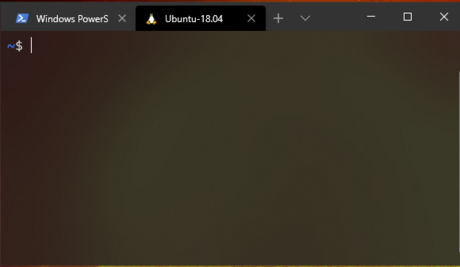
The Windows Terminal is a replacement for the old cmd.exe command line application.
It is, according to Microsoft, “a modern, fast, efficient, powerful, and productive terminal application for users of command-line tools and shells like Command Prompt, PowerShell, and WSL.”
You may already have the Windows Terminal installed. If not, you can install it from the Windows Store.
Windows Subsystem for Linux
The Windows Subsystem for Linux (WSL) lets you run a GNU/Linux environment directly on Windows without the overhead of a traditional virtual machine or dualboot setup.
Let’s install Ubuntu Linux version on the WSL!
- Open PowerShell as Administrator and run:
dism.exe /online /enable-feature /featurename:Microsoft-Windows-Subsystem-Linux /all /norestart
👆 Note: This is all one line.
-
Next you should restart your machine.
-
Finally go to the WSL Store and install Ubuntu 18.04.
-
Run Ubuntu 18.04 from your start menu.
-
Be sure to save the username and password you set for your WSL user account!
⚠️ WARNING: It’s crucial that you install Ubuntu 18.04. The WSL currently has issues with Ubuntu 20.04.
Ruby on the WLS
To install Ruby and Git in your Windows Subsystem for Linux. From your WSL prompt:
cd ~sudo apt updatesudo apt upgradesudo apt install zlib1g-dev build-essential libssl-dev libreadline-dev libyaml-dev libsqlite3-dev sqlite3 libxml2-dev libxslt1-dev libcurl4-openssl-dev libffi-dev libpq-devgit clone https://github.com/rbenv/rbenv.git ~/.rbenvecho 'export PATH="$HOME/.rbenv/bin:$PATH"' >> ~/.bashrcecho 'eval "$(rbenv init -)"' >> ~/.bashrcgit clone https://github.com/rbenv/ruby-build.git ~/.rbenv/plugins/ruby-buildecho 'export PATH="$HOME/.rbenv/plugins/ruby-build/bin:$PATH"' >> ~/.bashrcsource ~/.bashrcrbenv install 2.7.1rbenv global 2.7.1
Note: The install command (second last bullet point) takes a long time. Patience is a virtue.
Node and Yarn on the WSL
To install Node and Yarn from the WSL prompt:
curl -sL https://deb.nodesource.com/setup_12.x | sudo -E bash -curl -sS https://dl.yarnpkg.com/debian/pubkey.gpg | sudo apt-key add -echo "deb https://dl.yarnpkg.com/debian/ stable main" | sudo tee /etc/apt/sources.list.d/yarn.listsudo apt updatesudo apt install -y nodejs yarn
And then:
echo 'export PATH="$PATH:`yarn global bin`"' >> ~/.bashrc
Note: We’re sticking with Yarn 1.x for now. Rails doesn’t yet support Yarn 2.
Installing Rails and Other Gems
To install Rails, Rubocop and Solargraph from the WSL prompt:
gem install rails rubocop rubocop-rails solargraph -Nrbenv rehash
Configuring Git
Run the following using a WSL terminal. Ensure that you change the commands to include your name and your email address.
git config --global color.ui true
git config --global user.name "Your Name"
git config --global user.email "your@email.com"
ssh-keygen -t rsa -b 4096 -C "your@email.com"
You must use the email address associated with your GitHub account. If you do not have a GitHub account, create one now.
Be sure to leave the save location for ssh-keygen as the default. You can choose to set a passphrase or not.
Next, after the ssh-keygen program is complete, in the WSL terminal: cat ~/.ssh/id_rsa.pub
And add the output of that command as a new SSH Key in your GitHub settings here.
Testing Testing
Try the following from your WSL command prompt:
ruby -v
rails -v
git --version
node -v
yarn -v
The output should look something like this, although you version numbers may vary:
~ $ ruby -v
ruby 2.7.1p83 (2020-03-31 revision a0c7c23c9c) [x86_64-linux]

~ $ rails -v
Rails 6.0.3.2

~ $ git --version
git version 2.17.1

~ $ node -v
v12.18.3

~ $ yarn -v
1.22.5
Ruby Editors
Ruby source-code can be edited using any standard text-editor.
In this course I will be using VS Code for all in-class development.
VS Code is a free open-source editor built by Microsoft using HTML, JavaScript, CSS, and Node.js. It’s built on the cross-platform framework Electron so you can run it on Window, Linux or OS X.
Benefits of VS Code:
- Free & Open Source Software
- Cross-Platform
- Built-in File Fuzzy Finder
- Lots of Fun Plugins
VS Code WSL Mode
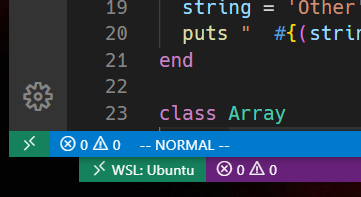
For this course we are going to run Visual Studio Code hooked into our Windows Subsystem for Linux.
First, visit your extensions (Ctrl-Shift-X) and install the “Remote - WSL” extension if it isn’t already there.
We can then launch VS Code in WSL mode in two ways:
1) From your WSL command line navigate to the folder that contains your Ruby code and run: code .
2) Launch VS Code normally and then click on the green icon in the bottom left corner of the app and select “Remote-WSL New Window”.
If this works correctly the corner green icon should now include the words “WSL: Ubuntu”
VS Code Extensions
There are lots of VS Code extensions that add functionality to the editor. Let’s add Ruby support to the editor:
-
Launch VS Code
-
Ctrl-Shift-X (For extensions)
-
Search for Ruby in the Extension Search Bar
-
Install what will likely be the top two results:
- Ruby Solargraph by Castwide
- Ruby by Peng Lv
-
Search and install the following as well:
- endwise by Kai Wood
- vscode-gemfile by 周鹏
- Auto Close Tag by Jun Han
- SQLite by alexcvzz
Other Optional Extensions
Some of my other favourite VS Code extensions for Web Dev are:
- Bracket Pair Colorizer 2
- Visual Studio IntelliCode
- Debugger for Chrome
- Docker
- html tag wrapper
- REST Client
- PrintCode
- Simple Icons (Requires
workbench.iconTheme: "simple-icons" in your settings.)
VS Code Configuration
Let’s update your VS Code Settings. Go to File->Preferences->Settings and click the “Open Settings (JSON)” button in the top right corner (document with arrow icon). Make your settings match the following:
{
    "editor.tabSize": 2,
    "files.autoSave": "onFocusChange",
    "files.trimTrailingWhitespace": true,
    "ruby.intellisense": false, // Let Solargraph handle intellisense.
    "ruby.format": "rubocop", // Set the auto-formatter for Ruby code to Rubocop.
    "ruby.lint": { "rubocop": true }, // Use Rubocop as the default linter too.
    "[ruby]": {
        "editor.formatOnSave": true, // Trigger auto-formatting for Ruby code.
    },
    "terminal.integrated.shell.windows": "C:\\WINDOWS\\System32\\wsl.exe", // PC Users Only
    "emmet.showSuggestionsAsSnippets": true,
    "emmet.includeLanguages": {"html.erb": "html", "erb": "html"},
}
Yes, the file paths requires double back-slashes.
Check your path for the WSL as well. Another possibility is C:\\WINDOWS\\System32\\bash.exe.
After that you should be able to open a bash terminal with VS Code using Ctrl-`
Rubocop Code Linting

Linting is the process of checking code for programmatic and stylistic errors. Programs that automate this process are called linters.
In this course we’ll be using RuboCop as our linting tool. We’ve already configured VS Code to automatically apply Rubocop fixes on save.
To further configure RuboCop, please do the following:
- From a WSL terminal:
code ~/.rubocop.yml
- Paste the content of this link into this file and save.
Running Ruby Code
Let’s quickly test out running a Ruby program from VS Code.
-
Close and restart VS Code to ensure all your new extensions and settings are active.
-
Open a new file and save it to a know location as first_ruby.rb.
-
Save the following in this file: puts "Hello World"
-
Open the built-in WSL terminal within VS Code using Ctrl-~ or the “New Terminal” option under the “Terminal” menu.
-
Using the terminal:
- Navigate to the folder where you saved your ruby code using the
cd command. (More details below.)
- Run the following:
ruby first_ruby.rb
Navigating to a Folder on the WSL
The WSL has it’s own file system, but you can also access your regular hard drives from the WSL prompt.
To navigate to the root of your C drive:
cd /mnt/c/
To navigate to the root of your D drive:
cd /mnt/d/
If, for example, I saved my first_ruby.rb file to my Desktop I would navigate there using:
cd /mnt/c/Users/kgeske/Desktop/
You Are Done

Congrats! You are done configuring your machine for Ruby on Rails.
You need only continue if you were unable to get the WSL running on your machine.
VirtualBox & Vagrant

If everything is working with Ruby on WSL you are now done! Do not follow any more of these instructions.
If you couldn’t get Ruby running the WSL you will need to install VirtualBox and Vagrant instead.
Download and install:
VirtualBox should be installed before Vagrant.
Please use all default options during both installations.
Vagrant Init
We’ll work through these instructions together in class.
Start by launching a Windows Terminal. From the terminal:
cd \
mkdir vagrant-rails
cd vagrant-rails
vagrant init bivee/rails
This will generate a Vangrantfile in your vagrant-rails folder. Open this file and change this line:
# config.vm.network "forwarded_port", guest: 80, host: 8080
to this:
config.vm.network "forwarded_port", guest: 3000, host: 3000
Note that we are both removing a # from the start of the line and modifying guest and host numbers.
Vagrant Up
The next step is to have Vagrant download and install the virtual Ubuntu Linux machine we’ll be using for our Ruby on Rails work.
From your terminal:
cd \vagrant-rails
vagrant up --provider virtualbox
Downloading the VM image may take some time. After this command has finished executing run:
vagrant ssh
This should connect you to the Linux VM command prompt.
Vagrant Up / Suspend / Halt
To put your Vagrant powered VM to sleep you first need to logout of your Linux command prompt:
exit
And then from the terminal:
vagrant suspend
If you wish to fully shutdown your VM:
vagrant halt
The next time you wish to use the VM:
vagrant up
vagrant ssh
All of these commands put be run from within your vagrant-rails folder.
Installing Rails on your VM
Although Ruby is already installed on your Vagrant VM, Rails is not.
Before you can install Rails you need to be at your VM’s command prompt. Using the terminal from your c:\vagrant-rails folder:
- Run
vagrant up, if you haven’t already.
- Run
vagrant ssh to connect to the VM.
You can then install rails with this command:
gem install rails
Updating Node on your VM
From the vagrant command line:
sudo apt-get remove nodejs
curl -sL https://deb.nodesource.com/setup_6.x | sudo -E bash -
curl -sS https://dl.yarnpkg.com/debian/pubkey.gpg | sudo apt-key add -
sudo apt-get update
sudo apt-get install nodejs
After that, run:
nodejs -v
You should see a reported version of 6.14.4.