Introduction

For years there wasn’t an easy standard way to import open-source code into a Javascript project.
Even if you were able to integrate an open-source library into your code, keeping the library code updated with bug fixes and security patches was a pain.
In these notes you’ll learn how to structure your Javascript code into modular components and how to import open-source modules written by others.
In the Beginning
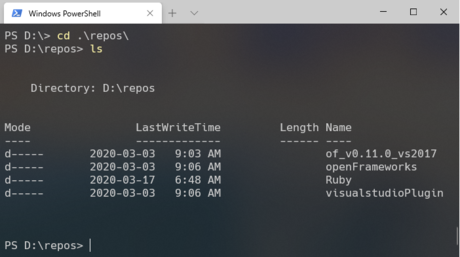
Was the Command Line
The command line is a text-based interface for your operating system (OS). We run command line interface (CLI) tools using a terminal.
Web developers use CLI tools to write, test, and deploy their work.
In this lesson we’ll be using a CLI tool to manage Javascript code modules.
👋 Mac and Linux Users
Historically both MacOS and Linux have had a better terminal/CLI experience than Windows. It’s getting better in Windows-land, but many web dev professionals still favour Mac or Linux machines for this reason.
Resources
- In the Beginning was the Command Line by Neal Stephenson
Required Tools

We need two things before we can proceed.
Node Package Manager
To explore Javascript modules we need a way to install packages of modules written by other developers. For this we’ll use the package manager that comes with NodeJS.
VS Code Editor
VS Code is a free open-source code editor from Microsoft that runs on Windows, MacOS, and Linux. VS Code includes a built-in command line terminal and a healthy plugin ecosystem.
Resources
A Word on Node
NodeJS makes it possible to run Javascript applications outside of the browser.
With Node we can write server-side code in JS or build cross-platform apps using web technologies. Super cool, but…
NodeJS app development is outside the scope of this course.
We’re installing Node to use the Node Package Management application npm.
Modules - Some History

During the first twenty years of Javascript development (1995-2015) all of the code added to a web page shared a global namespace.
During this time, third-party libraries and frameworks were most commonly added to a Javascript codebase by manually downloading the library code and loading it through a <script> tag.
Namespace Collisions

A global namespace worked for simple applications but if any included libraries used the same names for global functions, objects, or variables, the names would collide and the code would break.
Web developers came up with work-arounds, like using global objects as namespaces or immediately-invoked function expressions, but these solutions were not ideal.
A Simple Example Collision
Imagine including the following in your index.html document:
<script src="library.js"></script>
<script src="framework.js"></script>
<script src="index.js"></script>
In library.js:
// Saves data to browser's localStorage.
function save(storageData) {
  // Implementation details skipped.
}
In framework.js:
// Saves data to server logs using the fetch API.
function save(logData) {
  // Implementation details skipped.
}
And then somewhere in index.js:
save("Important Data That Needs Saving!");
Which save() will run? The one from library.js or the one from framework.js?
CommonJS and ES Modules
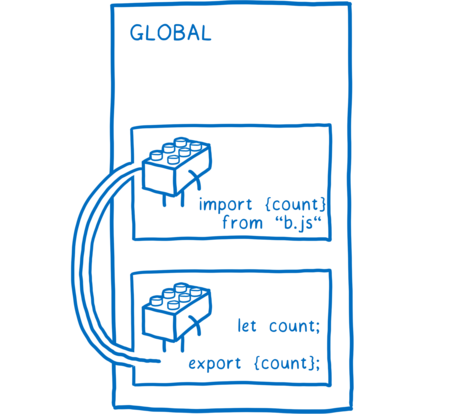
In 2009 NodeJS added a module system called CommonJS.
Browser code did not support modules until the 2015 addition of ES Modules to the Javascript specification.
🎉🎉🎉
We can now import code into our javascript apps in a safe and standard way!
Resources
- Image Source: ES modules: A cartoon deep-dive
Export and Import

Modules in Javascript are just files.
Files can export functionality which can then be imported by other files.
Two new keywords were added to the language to support this:
export: Marks variables, functions, and objects as accessible from outside the current module.import: Used to import the functionality exported by other modules.
Resources
Bundling Modules

Although all modern browsers support modules, it isn’t yet common practice to rely on browsers to load modules.
Instead, web developers use special programs called “bundlers” to bundle* all their modules together.
*Bundle: When used as a verb, bundle means to “tie or roll up a number of things together as though into a parcel.”
Resources
- Can I Use Browser Modules? - Mid-2020: 8% of global web traffic comes from browsers without module support.
Node Modules

An added benefit of bundling is the ability to easily integrate open source libraries.
Libraries are installed from the command line using the npm CLI.
The libraries you install with npm are tracked in the package.json and package-lock.json files, with their source code placed in a node_modules folder.
Resources
To get a sense of the size of the Javascript open-source ecosystem enabled by npm:
- Awesome Javascript - A collection of awesome browser-side JavaScript libraries, resources and shiny things.
“Awesome Lists” like 👆 exist for all sorts of topics and technolgies:
- Here’s an Awesome List of Awesome Lists - Meta-meta!
Install Node Packages

Let’s install a package. For this demo we’re going to use the Javascript charting library chart.js.
From you VS Code terminal:
npm install chart.js
Look at how your package.json file has changed.
There should now be a dependencies key defining a dependency to a specific version of chart.js.
You should also now have a package-lock.json file. This is a generated file that should not be manually edited.
The package-lock.json contains information about your dependencies and also about the dependencies of your dependencies. Look through this file and peek into the node_modules folder. By adding chart.js to your project you have actually added six package dependencies to your project instead of one.
Resources
Installing Parcel

We now need a way to bundle our code. For this we’ll install the Parcel bundler.
Use your terminal to add Parcel as a development dependency:
npm install parcel-bundler --save-dev
Note the changes to your package.json file.
There should now be a devDependencies key defining a development dependency to a specific version of parcel.
Take another look at your package-lock.json file to see all the new sub-dependencies you’ve now added to this project. By adding two packages (chart.js and parcel) your project now depends on over 750 packages! Imagine trying to manage these dependencies without a dependency manager.
Note: The development dependencies won’t be bundled with the app for deployment.
Why Parcel?
Although webpack is the most popular bundler, it is complex to configure from scratch.
The React apps we build this term will come pre-configured to use webpack, but we’re using Parcel here because it requires “zero config” for simple apps.
Resources
Project Files

We’re going to create a simple app that displays a pie chart using the chart.js npm module we just added.
- index.js - Our script that will import and use chart.js.
- index.css - A minimal stylesheet.
- index.html - Markup that references other two files.
Create these files and fill with the contents found here:
Contents of JS / CSS / HTML Files
Take a look at the code and see if you can figure out what the output might be.
Automatical Reloads

The parcel development server watches your files for changes.
Try changing the contents of the h1 tag in the index.html file.
Notice that the browser page automatically updates to include your saved changes.
The same things goes for your Javascript files, your stylesheets, and dependency changes in your package.json file.
Note: The size of the chart depends on the CSS width applied to the body. Changing the body width in the index.css requires a manual reload of the page to properly resize the chart.
Semantic Versioning
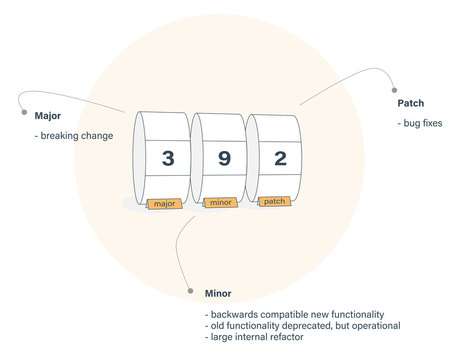
When you look into your package.json file you will see that dependency version numbers are listed using the semver or semantic versioning format: MAJOR.MINOR.PATCH
Library authors increment the:
- MAJOR version when code changes break backwards compatibility.
- MINOR version when backward compatible new features are added.
- PATCH version when backwards compatible bug fixes are applied.
Why Does This Matter?
By specifying the semver of a library in your package.json you ensure that you’ll be able to rebundle your application in the future using the same library versions you used while you developed the application.
Without semver npm might accidentally bundle your application with newer but incompatible versions of a module.
To future proof your code, or for security reasons, you might want to allow npm to incorporate the latest MINOR or PATCH release of a dependency. There’s a resource linked below with more information.
Resources
Transpiling

Bundlers can also be configured to convert (or transpile*) code written using modern Javascript syntax into old school Javascript.
Code that is bundled and transpiled will then run on older browsers that don’t support modern Javascript syntax.
Parcel automatically uses Babel to transpile our bundled code.
By default Parcel uses Babel to target “every browser that has 0.25% or more of the total amount of active web users.”
*Transpile: A process similar to compilation that translates source code from one programming language to another language, or from one version of a language to another version of that language.