Introduction
It’s time to start coding!
In this module we’re going to explore the Scratch programming language.
With Scratch, you can program your own interactive stories, games, and animations — and share your creations with others in the online Scratch community.
Let’s do this thing.
What is Scratch?
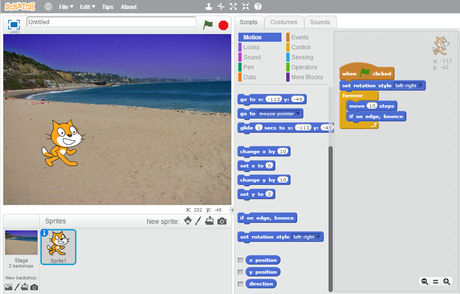
Scratch is a programming language and online community where you can create your own interactive stories, games, and animations – and share your creations with others around the world.
In the process of designing and programming Scratch projects, you will learn to think creatively and reason systematically.
The programmings skills you develop with Scratch will help you better understand the Java coding we do in the second half of this course.
Resources
It is recommended that you read through this Introduction to Scratch Tutorial.
Creating a Scratch Account
To start coding with Scratch you’ll want a Scratch account:
-
Visit the Scratch Homepage.
-
Click the “Join Scratch” button.
-
Pick and username and password.
-
Don’t forget your password. :)
Hello World
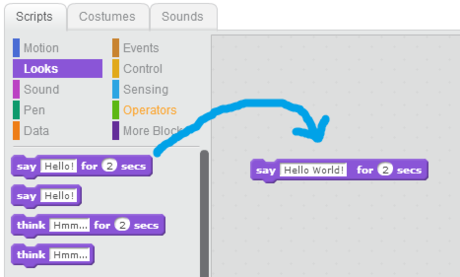
Let’s build a simple program.
Scratch programs are coded by dragging blocks into the Scripts area. Blocks are categorized by colour according to their behaviour.
- On the Scratch website follow the “Create” button to start Scratch.
- Click on the purple “Looks” category.
- Drag the “Say Hello! for 2 secs” block into the Scripts area.
- Click on “Hello!” within this block.
- Change the text to “Hello World”.
- Double click a purple part of the block.
The cat should say “Hello World” for 2 seconds.
Walking Back and Forth Forever
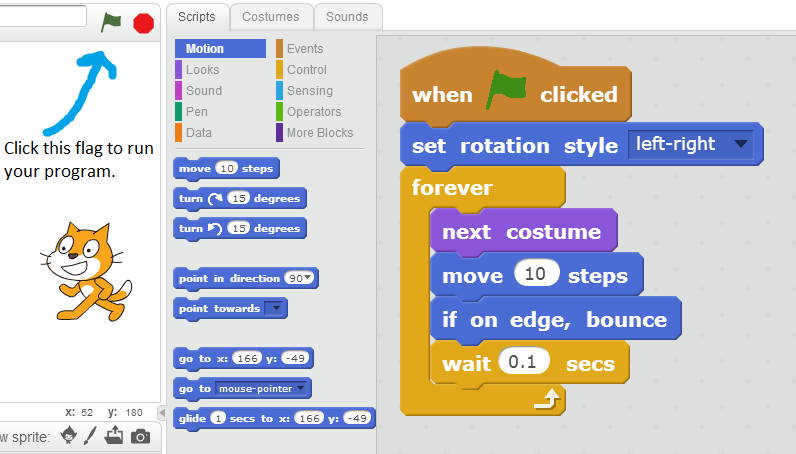
Build the program shown here. Click the green flag once you are done.
Sprites and the Stage
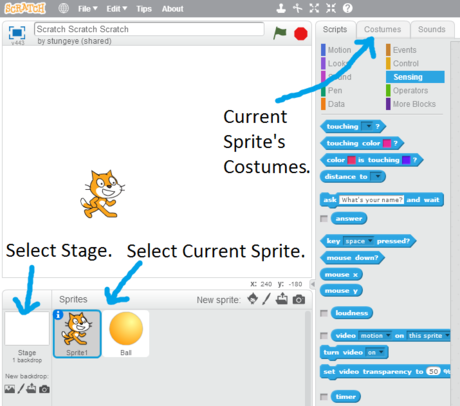
Each object in Scratch is called a sprite.
The cat you see in when you start Scratch is an example of a sprite.
Sprites can be controlled with code and can have multiple costumes.
Every Scratch program also has a stage.
The stage can also have associated code and multiple backdrops.
Statements
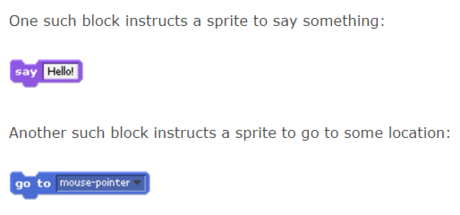
In programming, a statement is a directive that tells the computer to do something. You can think of it as a command or an instruction.
In Scratch, any block whose label reads like a command is a statement.
Scratch statements can be connected together. Blocks that are connected will execute one at a time from top to bottom.
You’ll know if you can snap two blocks together if they fit together like a puzzle piece.
Exploring the Available Blocks
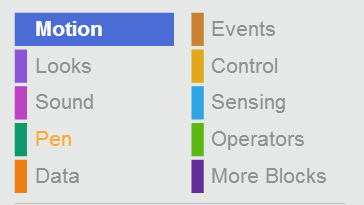
Scratch blocks are coloured and grouped by category.
The list of categories can be seen in the image on the right.
Right-click on any block and select “help” to learn more about it.
Commenting Your Code
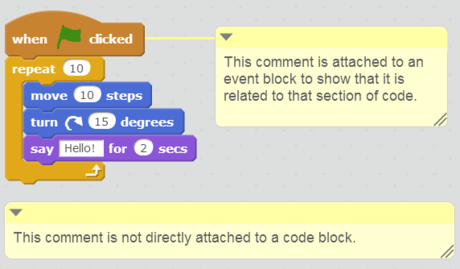
Comments are the parts of our code that are ignored by the computer but are important for people.
Comments let us write notes to ourselves and to any others who may read our code. These notes allow us to document our design decisions and to explain complex portions of our code.
In Scratch we can attach comments directly to the blocks they describe by right-clicking a block and selecting “add comment”.
We can also add comments that are not attached to specific blocks by right-clicking the background of the coding area and selecting “add comment”.
Scratch Resources
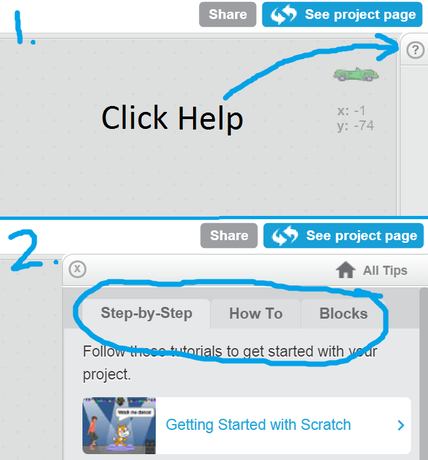
The following resources can be used to learn more about coding in Scratch:
- Getting Started with Scratch - The official introduction guide to Scratch programming.
- Scratch Videos - Short videos on common coding and image editing tasks in Scratch.
- Starter Projects - Example projects built by the Scratch team that you can explore and remix.
- Blocks for Game Programming - A look at some of the blocks you might need to use to code a game.
- Scratch includes built-in tutorials and reference material for all blocks. The image to the right shows how to access this help.
Submitting Scratch Assignments
Your Scratch assignments will be submitted digitally using the Learn dropbox. For each assignment you will be submitting one or more .sb2 files.
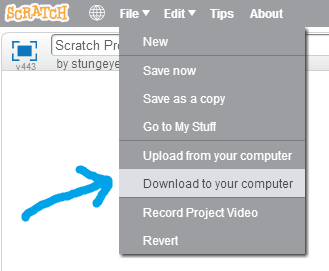
If you have been working with the online Scratch you will need to download your code to your computer before you submit it:
- Click on the File Menu.
- Select “Download to your computer”.
- Save the
.sb2file to a know location on your hard-drive.
If you have been working with the offline Scratch program you will have been saving your work to your hard-drive in this format already.