Ctrl-Z to Undo
Have you ever used CTRL-Z to undo a change you’ve made in a file?
CTRL-Z lets us undo one or more changes in files we have open, but it has it’s limitation.
-
What if you wanted to undo a change to a file you made weeks ago?
-
What if you wanted to undo a change made to a file by someone else?
-
What if you wanted to experiment with a series of changes and then revert back to a specific version of the file?
Version Control

Version control, also known as revision control or source control, is the management of changes to documents like computer programs.
CTRL-Z is the simplest form of version control.
Some documents have more advanced version control built in. For example:
- Microsoft Word has a “Track Changes” feature.
- Google Docs automatically tracks file changes over.
- You can see the edit history of all Wikipedia articles.
(Here’s the history of the version control article.)
More Than Just Undo

Version control allows for more than just undoing things.
You can use version control to:
-
Work on new projects features while at the same time patching bugs found in older version of the code.
-
Collaborate with someone on a projects without overwriting each other’s work.
-
Work with distributed teams of coders from around the world to develop open-source applications.
Fancy Version Control Words
When discussing version control you’ll need to know the definition of the following terms:
-
Respository - A collection of files and directories you are monitoring for changes using a version control tool. Sometimes shortened to repo.
-
Hash - A string of characters that acts like a digital fingerprint for a file or portion of a file. The type of hash used by git is the SHA1 cryptographic hash.
-
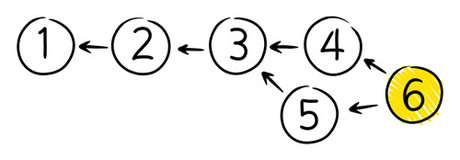
Graph - A diagram of nodes connected by lines called edges. (See image.)
-
DAG - Directed Acyclic Graph. A graph were the edges are arrows (directed) and no matter which arrow you follow you can never travel in a circle (acyclic).
-
CLI - Command Line Interface. The “Terminal” or “Shell” of your operating system. Git is a CLI tool but there are also graphical (GUI) interfaces.
Change Management with Git
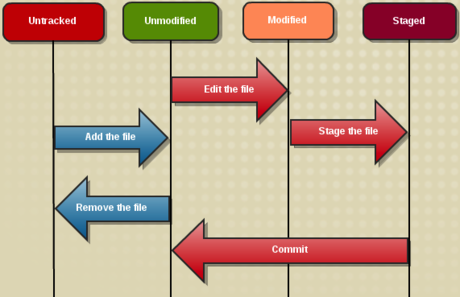
As we make changes to our source code we need to commit these changes to our git repository.
Before we can commit we must add new or changed files to a staging area:
git add path\to\file.name
Using a period to add all new or modified files:
git add .
Wilcards work too:
git add "*.rb"
Committing your staged changes with a commit message:
git commit -m "Your explanation of the changes goes here."
Git Commits and the Git Log
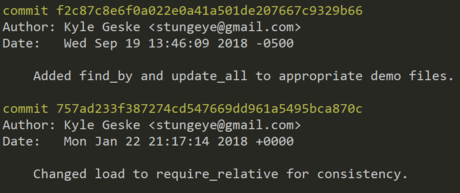
A repo’s commits can be reviewed by running:
git log
Each entry in the log shows:
- The commit hash.
- Who made the commit.
- When it was made.
- The commit message.
The image to the right shows two entries from a git log. The 40 character hex numbers shown at the start of each entry are the SHA1 hashes that uniquely identify each commit.
Branching
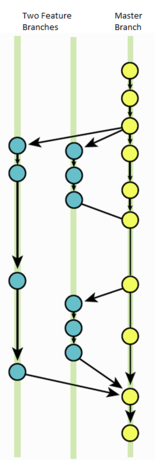
Branches in git give you a safe space to work on new features. The main branch of your repository is called the master branch.
Commits made in other branches can be merged into the master at any time. Branches can also be abandoned or even deleted at any time leaving the master unchanged.
To create a new branch: git checkout -b new-branch-name
To switch branch: git checkout name-of-branch
To merge change into the active branch: git merge branch-to-merge
To delete a branch: git branch -d branch-to-delete
Resources
- Git likely uses the term “master” in the context of “master copy” or “master recording” but you can easily rename your Git default branch from master to main if you wish to.
Distributed Versioning with Github
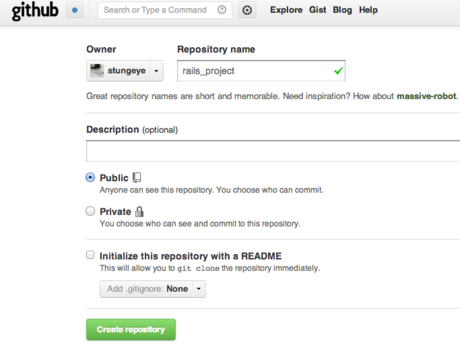
To save your git repository to your GitHub account, create a new repository by way of the “create a new repo” button in the top corner of the GitHub website.
IMPORTANT: Be sure not to click the checkbox to add an initial README file.
Let’s say you’ve created a new repo called “rails_project” and you’ve already initialized this project’s git repository.
From the command line (within your project folder) add Github as a remote:
git remote add origin git@github.com:<username>/rails_project.git
This should be all one line with <username> replaced by your actual username.
When ever you want to push the latest state of your repo to Github:
git push origin master
Undoing Things in Git

In Git, undo can mean a few different things depending on what you wish to undo.
Learn more about undoing with git:
- Undoing Changes wit Git
- How to undo (almost) anything with Git
- On undoing, fixing, or removing commits - A git choose-your-own-adventure!